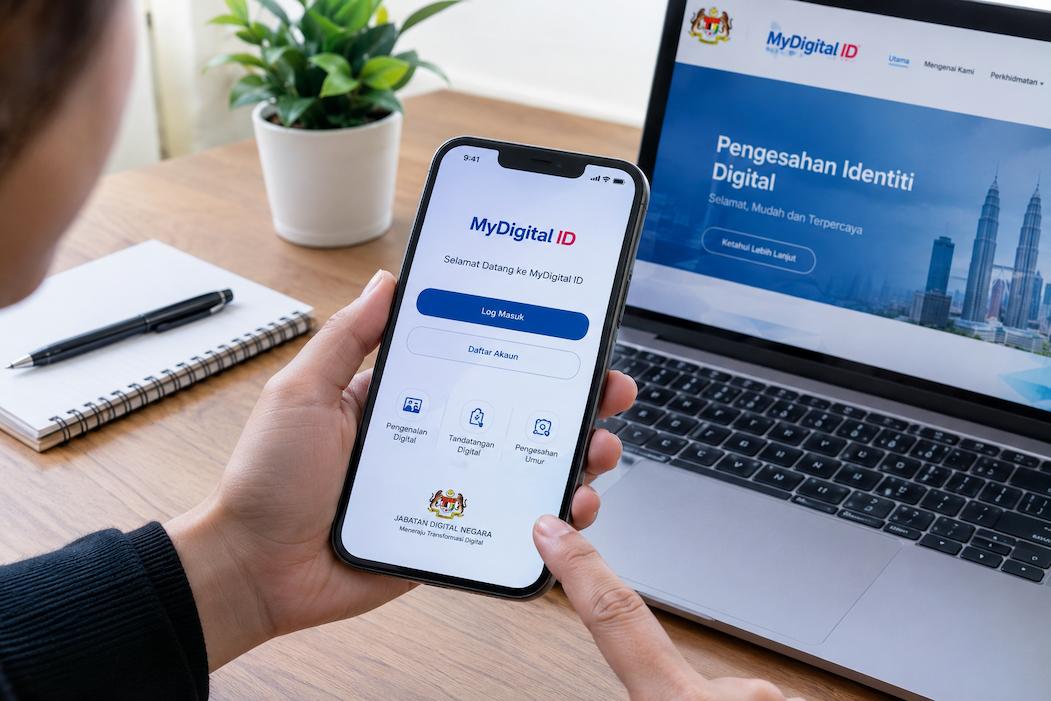
Pernahkah anda cuba log masuk ke portal perkhidmatan kerajaan baru-baru ini dan melihat satu pilihan baharu terpapar di skrin: “Log Masuk dengan MyDigitalID”? Sistem pengesahan identiti digital nasional ini kini mula diintegrasikan secara berperingkat ke dalam pelbagai portal utama seperti MySejahtera, JPJ MySIKAP, SPA9, dan LHDN MyTax. Walau bagaimanapun, proses pendaftarannya sering mendatangkan kekeliruan kepada rakyat kerana ia menuntut ketelitian imbasan biometrik wajah yang sangat ketat.
Sebagai pemerhati pentadbiran digital awam, saya melihat MyDigitalID sebagai kunci keselamatan masa depan untuk menghapuskan penipuan identiti dalam talian (*identity theft*). Ia bukanlah aplikasi dompet digital atau pengganti MyKad fizikal, sebaliknya ia adalah “pengesah diri digital yang sah di sisi undang-undang”. Panduan teknikal ini akan membimbing anda melangkah masuk ke dalam ekosistem MyDigitalID tanpa mengalami ralat imbasan wajah atau kegagalan integrasi Jabatan Pendaftaran Negara (JPN).
Pra-Syarat & Persiapan Sebelum Mendaftar
Sebelum anda memuat turun aplikasi MyDigitalID di telefon pintar anda, pastikan peranti dan dokumen anda memenuhi spesifikasi sistem yang ditetapkan:
- Telefon Pintar Berfungsi Baik: Pastikan peranti anda mempunyai kamera hadapan yang bersih dan sistem operasi (iOS atau Android) versi terkini. Telefon yang mengalami kerosakan pada skrin atau kamera kabur akan gagal melepasi tapisan pengecaman wajah.
- MyKad Asal (Bukan Salinan): Sediakan MyKad fizikal anda di atas meja bercahaya terang. Anda akan diminta merakam gambar kad pengenalan tersebut secara langsung melalui aplikasi.
- Nombor Telefon Bimbit Aktif: Nombor telefon yang didaftarkan mesti didaftarkan atas nama anda sendiri (prapesan prabayar atau pascabayar yang sah di bawah MyKad anda) kerana kod pengesahan TAC akan dihantar ke nombor tersebut.
- Sambungan Internet Stabil: Proses pendaftaran memerlukan komunikasi data secara langsung (*real-time sync*) dengan pelayan pusat Jabatan Pendaftaran Negara (JPN).
Panduan Langkah demi Langkah: Pendaftaran & Pengesahan Digital
Muat turun aplikasi rasmi MyDigitalID melalui Apple App Store, Google Play Store, atau Huawei AppGallery. Ikuti urutan taktikal ini untuk mendaftar:
Langkah 1: Masukkan Nombor Kad Pengenalan & Pengesahan JPN
Buka aplikasi, masukkan nombor MyKad anda. Sistem akan menghantar kod OTP (One-Time Password) berangka ke nombor telefon bimbit anda. Selepas nombor disahkan, aplikasi akan mula menyemak padanan rekod data anda dengan pangkalan data pusat JPN.
Langkah 2 dari 4
PENGESAHAN BIOMETRIK WAJAH (LIVESTOCK CHECK):
Sila posisikan wajah anda di dalam bulatan bingkai. Ikut arahan skrin untuk mengedip mata atau senyum bagi pengesahan hayat (liveness detection).
Langkah 2: Imbasan Biometrik Wajah (Ujian Kehidupan)
Fasa ini adalah titik kritikal di mana majoriti pengguna gagal. Algoritma keselamatan MyDigitalID memerlukan anda membuktikan bahawa anda adalah manusia sebenar yang berdiri di hadapan kamera, bukannya menggunakan gambar pegang fizikal atau rakaman video lama.
Pastikan anda berada di dalam bilik yang mempunyai pencahayaan lampu yang terang (elakkan cahaya dari arah belakang / *backlight* yang mencetuskan bayang gelap pada muka). Ikut arahan skrin telefon dengan pantas—contohnya mengedip mata dua kali atau memusingkan sedikit kepala ke kiri dan kanan.
Langkah 3: Cipta Kata Laluan Pintar & Pengesahan Kunci Keselamatan
Selepas imbasan wajah berjaya disahkan, anda akan diminta mencipta kata laluan keselamatan yang kukuh (gabungan huruf besar, huruf kecil, nombor, dan simbol) serta mengaktifkan fungsi biometrik telefon anda (pengimbas cap jari Touch ID atau pengecaman muka Face ID). Ini memastikan hanya anda seorang sahaja yang boleh meluluskan sebarang transaksi digital kerajaan pada masa hadapan.
Jadual Rujukan: Perbandingan Kaedah Pengesahan Identiti Kerajaan
Rakyat sering keliru antara MyDigitalID dengan aplikasi MySejahtera atau ID log masuk portal individu yang lain. Rujuk jadual hierarki sistem di bawah untuk memahami fungsi sebenar MyDigitalID.
| Sistem Pengesahan | Fungsi & Peranan Utama | Tahap Keselamatan |
|---|---|---|
| ID Pengguna Klasik (Contoh: No. IC & Password) | Log masuk manual berasingan untuk setiap portal kerajaan (SPA9, LHDN, JPJ). | Rendah (Mudah digodam jika kata laluan bocor). |
| MyDigitalID (Nasional) | Platform pengesahan tunggal (Single Sign-On) merentas semua kementerian dan agensi kerajaan. | Sangat Tinggi (Disepadukan biometrik JPN). |
| MySejahtera | Aplikasi kesihatan awam, rekod vaksinasi, dan perkhidmatan kesihatan kementerian. | Sederhana (Khas untuk kluster kesihatan). |
Nasihat Pentadbiran / Tips Orang Dalam
Sebagai individu yang meneliti integrasi pangkalan data agensi awam, satu pesanan penting saya berikan: Jangan padam aplikasi MyDigitalID selepas anda selesai mendaftar. Ramai rakyat Malaysia menganggap ia aplikasi sekali guna (*one-time use*), lalu memadamnya daripada telefon selepas selesai mengemas kini profil tertentu.
Kerajaan secara rasmi sedang bergerak ke arah fasa di mana semua bantuan subsidi bersasar (seperti subsidi bahan api RON95, Sumbangan Tunai Rahmah, dan urusan penebusan geran awam) memerlukan pengesahan cap jari atau pengesahan kod QR MyDigitalID. Mempunyai aplikasi ini di dalam telefon pintar anda lebih awal bermakna anda tidak akan tersangkut dalam kesesakan digital apabila dasar baharu kerajaan dikuatkuasakan secara menyeluruh kelak.
Penyelesaian Masalah & Ralat Pendaftaran MyDigitalID
Sistem biometrik berpusat sering mencetuskan konflik teknikal jika peranti atau data peribadi tidak sepadan. Berikut adalah 3 krisis pendaftaran lazim dan jalan keluar rasminya.
1. Ralat: “Imbasan Wajah Gagal / Wajah Tidak Sepadan dengan JPN”
- Punca: Foto MyKad fizikal anda diambil bertahun-tahun lalu (contohnya semasa umur 12 tahun atau gambar lama beresolusi rendah), manakala imbasan wajah semasa anda kini mempunyai ciri fizikal yang berbeza (seperti penambahan janggut tebal, cermin mata besar, atau perubahan struktur wajah ketara).
- Penyelesaian: Tanggalkan cermin mata atau kopiah/tudung yang menutup bentuk dahi semasa imbasan. Jika sistem masih menolak, ralat ini bermakna foto biometrik di cip MyKad anda perlu dikemas kini. Anda wajib hadir ke cawangan JPN fizikal untuk mengambil gambar muka baharu dan memperbaharui kad pengenalan anda.
2. Nombor Telefon Bimbit Dipaparkan Telah Didaftarkan Oleh Orang Lain
- Punca: Anda membeli nombor telefon prabayar baharu (*prepaid*), tetapi nombor tersebut sebenarnya adalah nombor kitar semula (*recycled number*) yang pernah didaftarkan oleh pemilik terdahulu di sistem MyDigitalID.
- Penyelesaian: Anda tidak boleh mendaftar menggunakan nombor tersebut secara normal. Anda perlu menghubungi talian meja bantuan rasmi MyDigitalID atau mengemukakan tiket aduan berserta salinan bil / kad pendaftaran talian telco anda untuk membuktikan bahawa anda adalah pemilik sah nombor telefon tersebut pada masa sekarang bagi tujuan tetapan semula sistem.
3. Aplikasi Terhenti Tiba-Tiba (Crash) Semasa Proses Validasi TAC
- Punca: Versi aplikasi di telefon pintar anda belum dikemas kini ke versi terkini, atau memori RAM telefon penuh akibat terlalu banyak aplikasi latar belakang dibuka.
- Penyelesaian: Tutup semua aplikasi lain, kosongkan ruang RAM, pastikan anda memuat turun versi rasmi terkini daripada App Store/Play Store, dan mulakan semula proses pendaftaran dari skrin utama.
Soalan Lazim (FAQ) MyDigitalID
1. Adakah MyDigitalID wajib dimiliki oleh semua rakyat Malaysia?
Pada peringkat pengenalan awal, pendaftaran ini adalah secara sukarela bagi memudahkan urusan digital rakyat. Walau bagaimanapun, memandangkan kerajaan beransur-ansur mewajibkan penggunaannya untuk mengakses portal perkhidmatan awam bernilai tinggi dan penyerahan subsidi bersasar, memilikinya adalah satu keperluan strategik jangka panjang.
2. Adakah data peribadi saya (seperti cap jari dan imbasan muka) dijual atau dikongsi dengan syarikat swasta?
Tidak sama sekali. MyDigitalID ditadbir di bawah kawalan keselamatan ketat Majlis Keselamatan Negara (MKN) dan MIMOS Berhad. Sistem ini direka menggunakan seni bina tanpa simpanan data biometrik terpusat yang terdedah; ia hanya bertindak sebagai ‘pintu pengesah’ (gateway authenticator) yang merujuk terus kepada pangkalan data rasmi JPN tanpa mendedahkan maklumat sensitif anda kepada pihak ketiga.
3. Apa yang perlu saya buat jika telefon bimbit saya hilang atau dicuri? Adakah akaun MyDigitalID saya boleh diceroboh?
Akaun anda dilindungi oleh lapisan keselamatan biometrik peranti anda (Face ID atau Cap Jari) serta kata laluan peribadi yang hanya anda ketahui. Sekiranya telefon hilang, segera hubungi syarikat telekomunikasi untuk menyekat talian SIM anda, dan anda boleh log masuk semula menggunakan peranti baharu; pendaftaran pada peranti lama akan terbatal secara automatik apabila sesi baharu diaktifkan.
Pendigitalan identiti melalui MyDigitalID adalah anjakan paradigma pentadbiran awam yang memastikan urusan harian anda bersama agensi kerajaan menjadi lebih selamat, pantas, dan bebas penipuan. Luangkan masa selama 10 minit hari ini untuk melengkapkan proses pendaftaran biometrik anda, dan nikmati kemudahan akses perkhidmatan kerajaan di hujung jari tanpa perlu lagi mengingat pelbagai kata laluan yang merumitkan.